

Slack Integration
Connect Slack to receive notifications and interact with Quotient directly from your workspace
Quotient's Slack integration lets you receive notifications and interact with Quotient directly from your Slack workspace. There are two main capabilities:
- Notifications — Receive updates about your marketing activities directly in Slack
- Talking to Quotient — Chat with Quotient without leaving Slack
Getting Started
To enable the Slack integration, navigate to Integrations > Slack in Quotient and click Connect to Slack. You'll be prompted to authorize Quotient to access your Slack workspace. Once connected, you can start receiving notifications and chatting with Quotient immediately.
Notifications
Quotient can send you notifications about important events—like when it completes a task or needs your input—directly to Slack. These notifications arrive as direct messages from the Quotient bot, keeping your channels clutter-free while ensuring you never miss an important update.
Configuring Notification Preferences
You can customize which notifications you receive in Slack from your notification preferences. Navigate to Settings > Notifications to control exactly what types of updates Quotient sends you.
For each notification type, you can choose:
- Immediate — Receive the notification in Slack right away
- None — Don't send this notification type to Slack (you may still receive it via email)
Talking to Quotient in Slack
You can interact with Quotient directly from any Slack channel or direct message—just mention @Quotient and start chatting.
How It Works
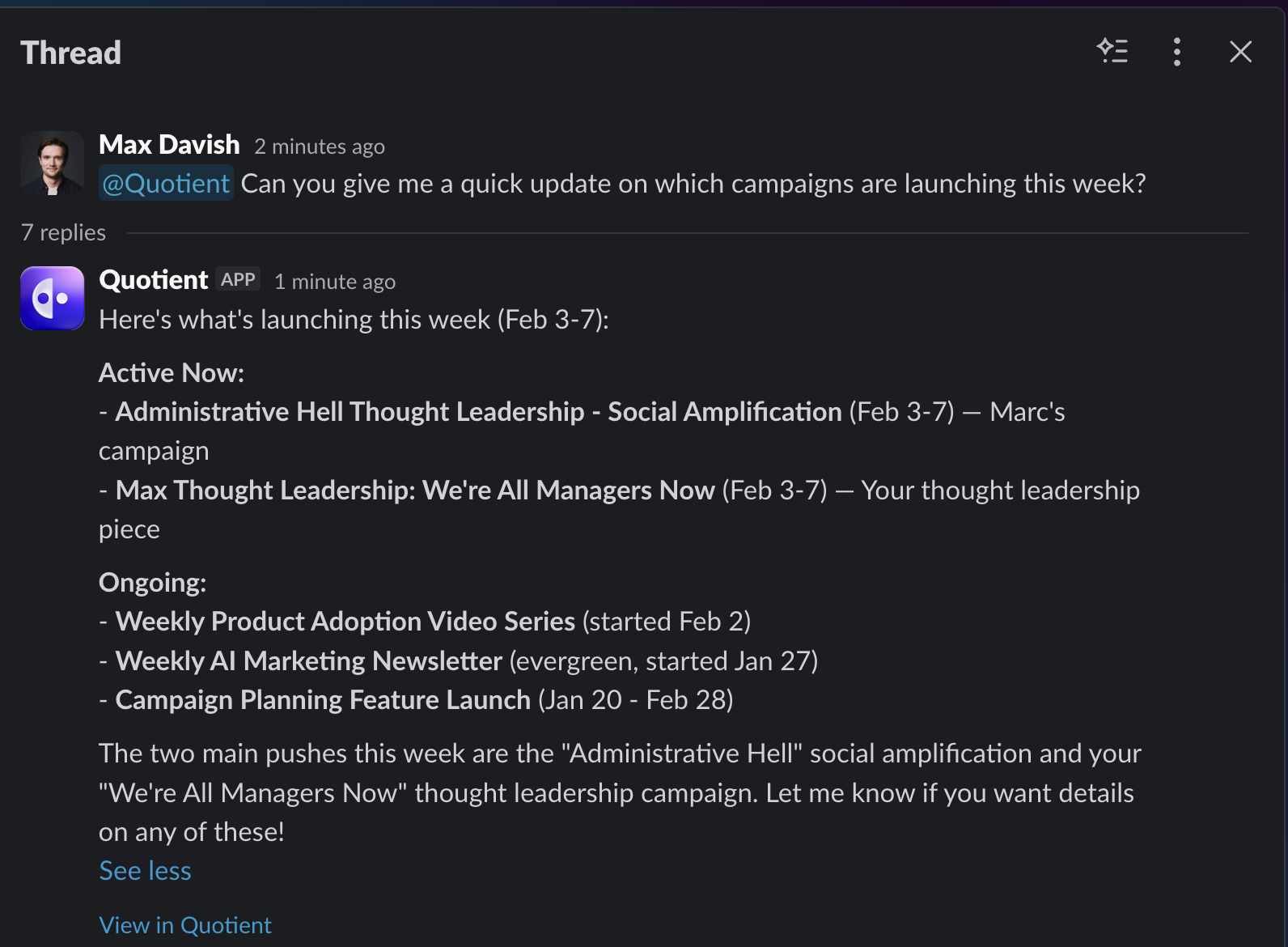
When you mention @Quotient in Slack, here's what happens:
- Quotient processes your request — Your message is sent to Quotient, which works on your request
- A thread is created in Quotient — The conversation becomes a thread in Quotient that you can view anytime
- You get a response in Slack — Once processing is complete, Quotient replies in the same Slack thread with a summary of what was accomplished
The entire conversation—including all the work Quotient did—is visible in the Quotient app. Just click the "View in Quotient" link in the response to see the full thread.
Using Conversation Context
When you mention @Quotient mid-thread, it can see the full conversation history leading up to your message. This means you can discuss ideas with colleagues first, then bring Quotient in to execute.
For example:
I have an idea for a new campaign. We should target our enterprise customers with content about our new analytics features.
Love it. Let's do a blog post and some LinkedIn posts from our company page.
Perfect. @Quotient make it happen!

Done! I've created a campaign called "Enterprise Analytics Launch" with:
Blog post: "5 Ways Advanced Analytics Transforms Enterprise Marketing"
- LinkedIn post from Company page
- LinkedIn post from Marc's profile
View in Quotient →
Because Quotient can see the entire conversation, it understands exactly what you're asking for without you having to repeat the context.
Continuing the Conversation
If you need to make changes or ask follow-up questions, just reply in the same Slack thread and mention @Quotient again. Your follow-up will be added to the same Quotient thread, preserving the full context of your conversation.
File Attachments
You can attach files to your messages when chatting with Quotient in Slack. Any file type that Quotient supports—such as images, PDFs, and documents—will be processed. Unsupported file types are simply ignored.
Tips for Getting the Most Out of Slack
Here are a few tips to help you work effectively with Quotient in Slack:
-
Be specific in your requests. The more context you provide, the better Quotient can help. Instead of "create a campaign," try "create a campaign for our product launch next month targeting enterprise customers."
-
Use threads for context. When you mention @Quotient in an existing thread, it can see the full conversation history. Use this to your advantage by discussing ideas with your team first, then bringing Quotient in to execute.
-
One request at a time. Like most AI applications, Quotient processes one message at a time. If you send a follow-up while Quotient is still working on your previous request, it may ask you to wait until it's finished.
-
Check the full thread in Quotient. The response you see in Slack is a summary. For the full details of what Quotient did—including any drafts it created—click through to view the thread in Quotient.
Troubleshooting
Quotient isn't responding to my @mention
Make sure Quotient has been added to the channel where you're trying to mention
it. In private channels, you may need to invite Quotient first using
/invite @Quotient.
I'm not receiving notifications in Slack
Check your notification preferences in Settings > Notifications to ensure Slack notifications are enabled for the notification types you want to receive. Also verify that your Slack integration is still connected in Integrations > Slack.
My file attachment wasn't processed
Quotient only processes supported file types. If your file wasn't processed, it may be an unsupported format. Try converting it to a common format like PDF or PNG.