

Subscriptions
Control who receives your email and let people choose the topics they hear about.
If you send people email they didn't ask for, or keep emailing them after they asked you to stop, they mark you as spam. Enough spam reports and inbox providers like Gmail start sending all of your email to the spam folder, including email to people who want it. In many places it's also against the law.
Quotient keeps track of who has agreed to hear from you and what they want to hear about, and it won't send a broadcast to anyone who has opted out. This page explains how that works and how you can shape it. (Quotient can only go by what it's told, though. You're still responsible for having permission to email the people you add.)
Core Concepts
Subscription Status
Every person in your audience has a subscription status. It records whether they've agreed to receive email from your business at all. There are three you'll see day to day:
- Subscribed: they agreed to receive your email, for example by entering their address in a signup form on your website.
- Unsubscribed: they asked to stop receiving all email from you.
- Not Subscribed: they haven't done either. This is where people start when you add them yourself, through a CSV import or a CRM integration like HubSpot.
Not Subscribed people can receive your email while double opt-in (explained below) is off. Once you turn it on, they can't, unless they confirm through one of your signup forms or you mark them Subscribed.
Topics
Topics sort your email by subject, so people can choose what they hear about. Common examples are "Newsletter," "Product Updates," and "Webinars." Without topics, someone tired of your webinar invites has one option, which is to unsubscribe from everything. With topics, they can stop the invites and keep reading your newsletter.
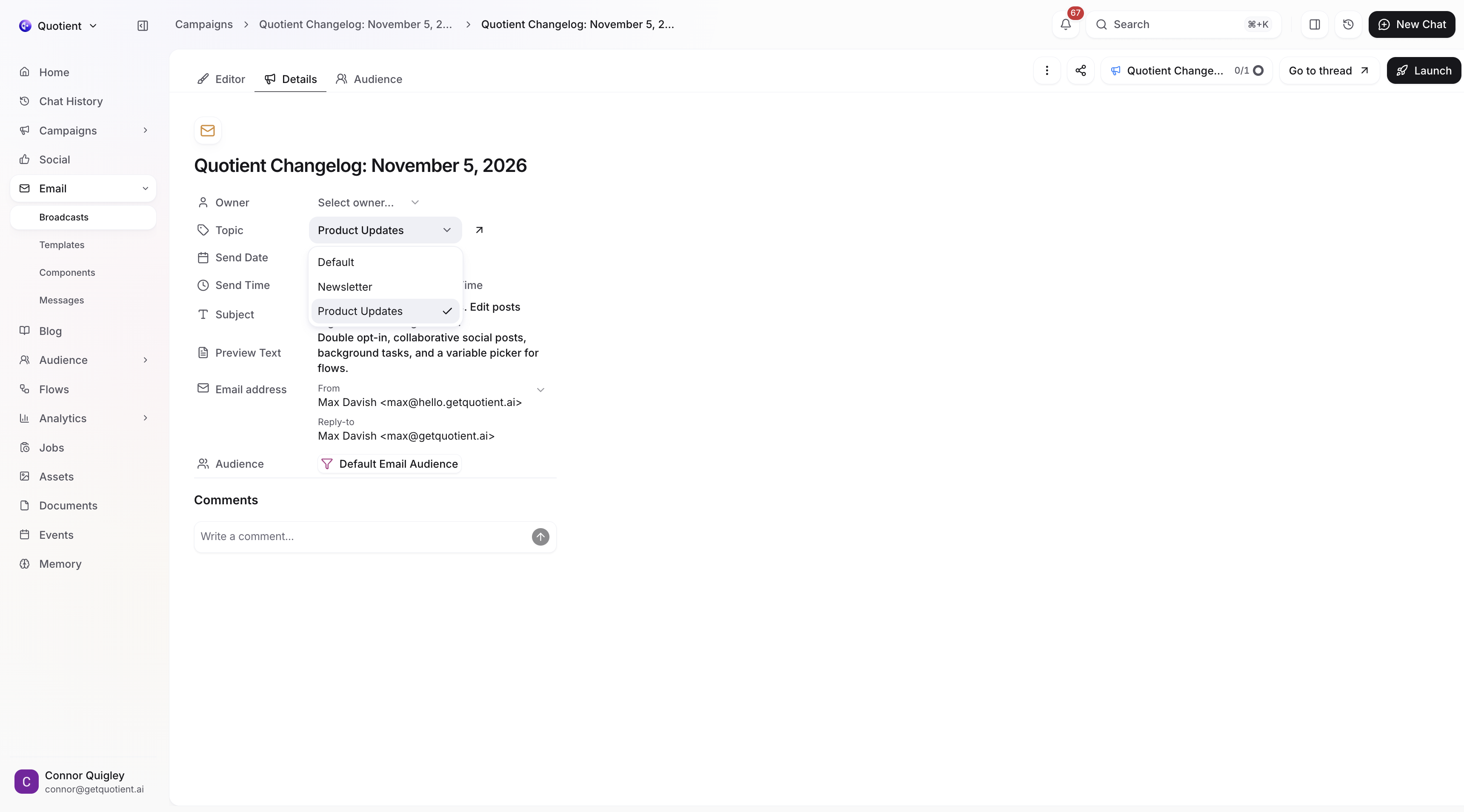
Every broadcast is sent under one topic. For example, you might send your monthly changelog under Product Updates. A person receives that broadcast only if they're opted in to Product Updates.
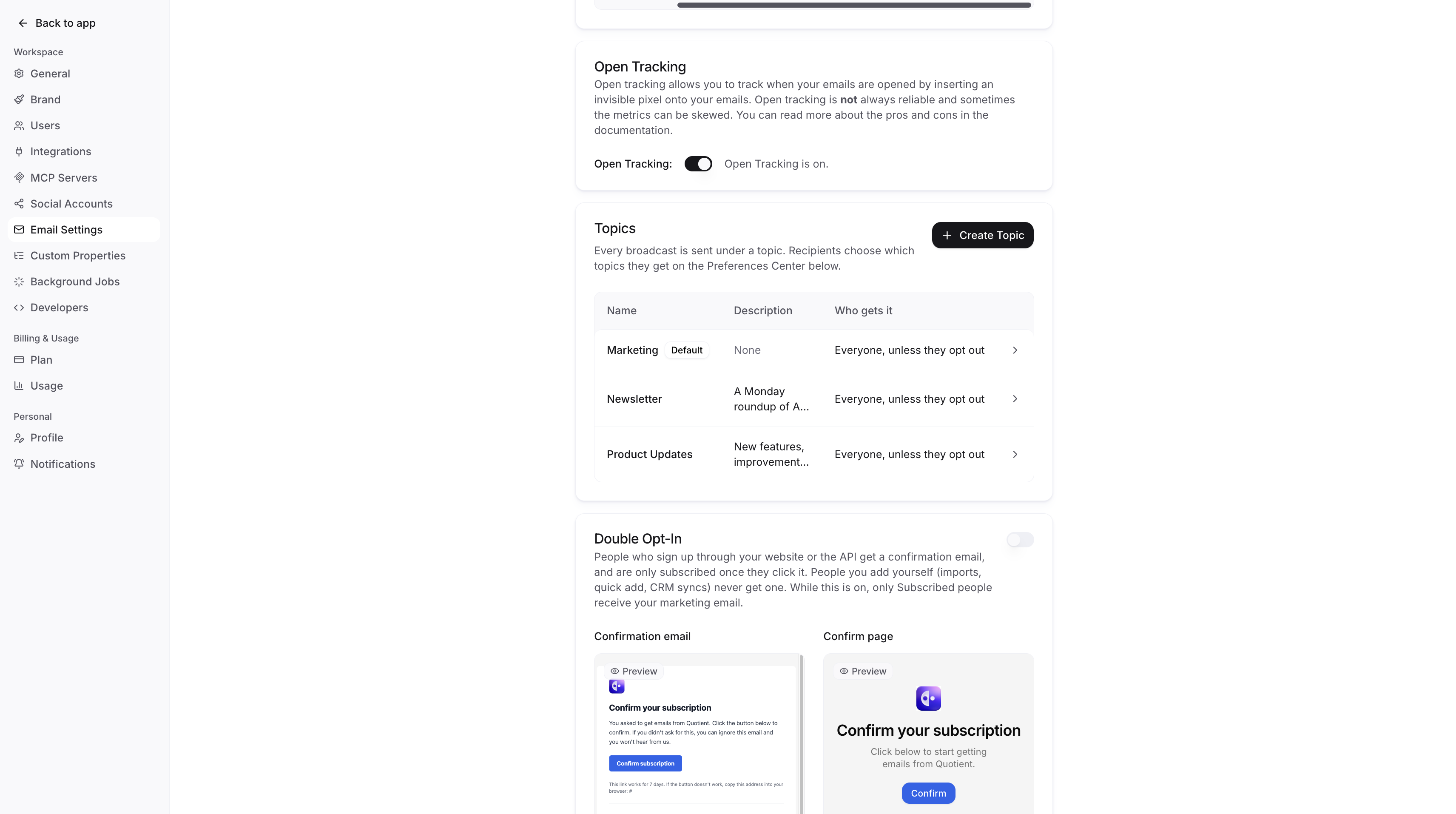
Your business starts with one topic, called Default. You can rename it, but you can't archive it. Every email from a flow, such as a welcome series, is sent under the Default topic. If you never create another topic, everything you send is sent under Default.
Each topic also has a default setting, which decides who receives it before they've made a choice:
- Everyone, unless they opt out. Good for your main newsletter: everyone on your list gets it until they turn it off.
- Only people who opt in. Good for niche or occasional email, like webinar invites: only people who asked for it get it.
You pick a topic's default setting when you create it. It applies to everyone who hasn't made a choice for that topic, including people who were already in your audience before the topic existed. So a new Newsletter topic set to "Everyone, unless they opt out" reaches your whole audience right away.
People choose their topics on the preferences page, which is linked from the footer of every email you send (more on that below). You can create and edit topics in Email Settings under Topics.
Double Opt-In
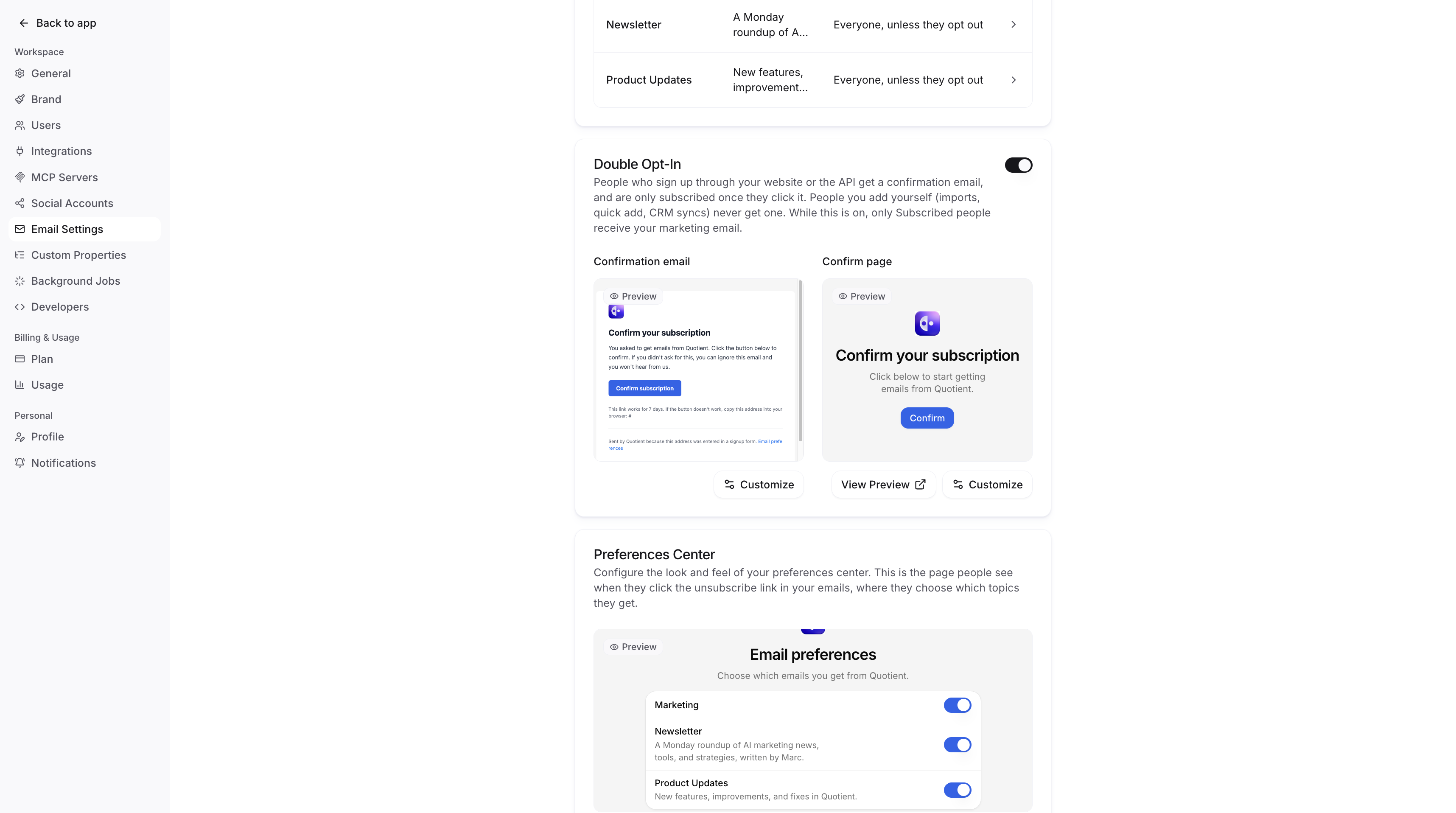
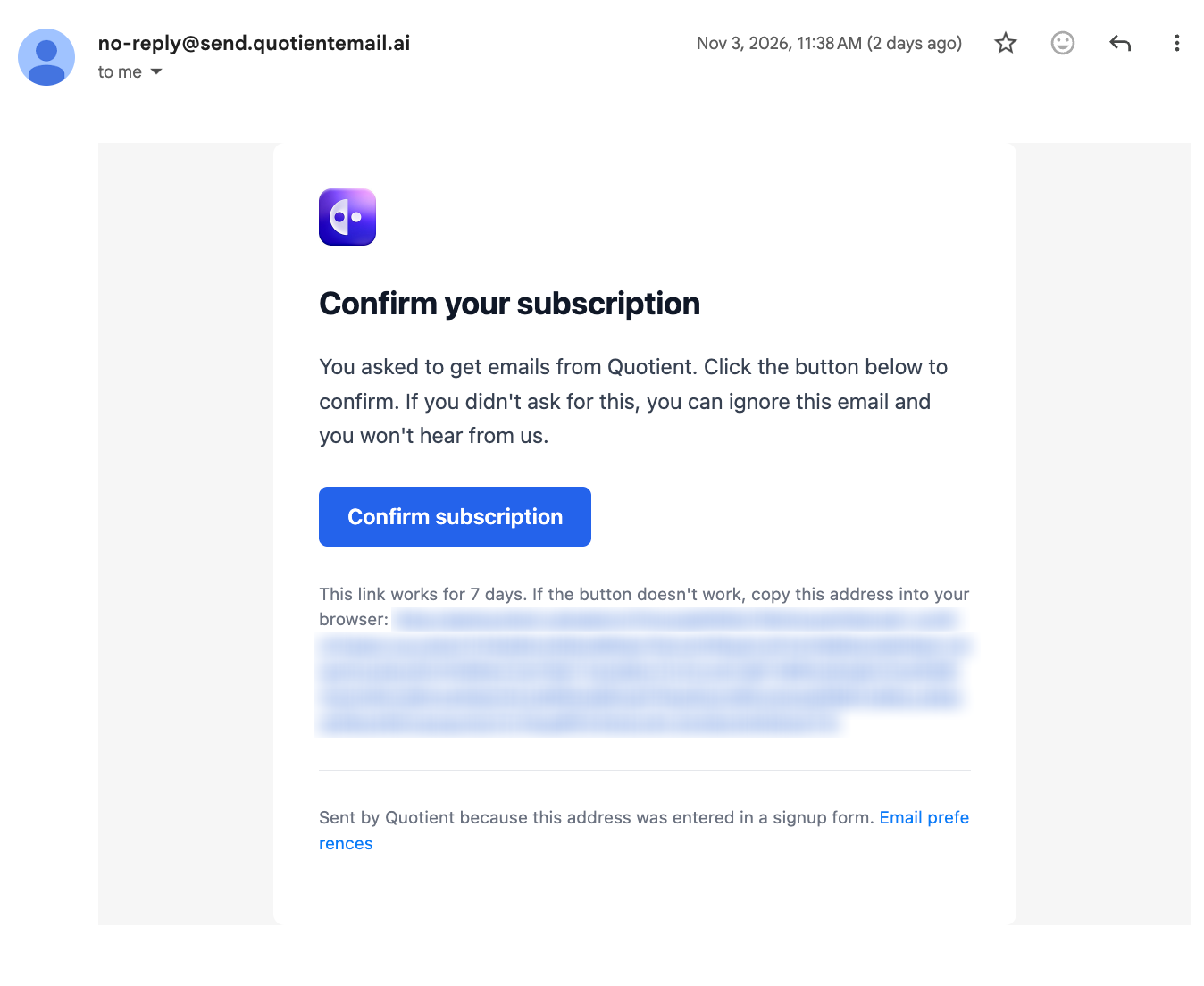
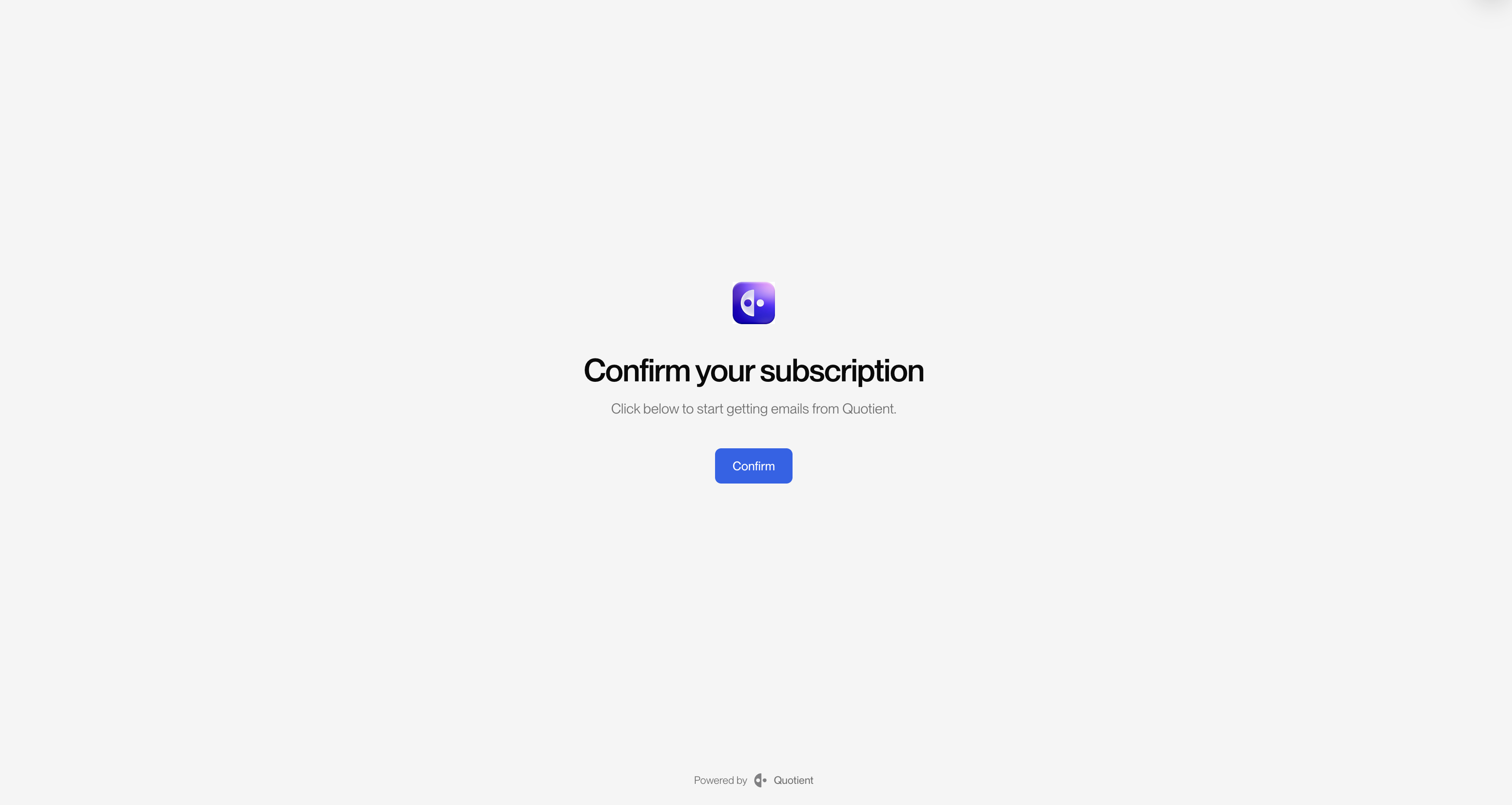
Double opt-in means asking people to confirm their email address before you start emailing them. You've probably done this yourself: you sign up for a newsletter, and a moment later an email arrives asking you to confirm. You click the button, land on a confirmation page, and start receiving the newsletter.
Double opt-in stops typos and fake signups from receiving your email, which protects your sender reputation and helps your email reach the inbox. It also gives you a record that each person asked to hear from you, which some countries' laws effectively expect.
You can turn double opt-in on or off in Email Settings under Double Opt-In. While it's on, people who sign up through your website get a confirmation email, and they can't receive your email until they click the button in it. You can customize both the confirmation email and the page it links to.
Suppression
When Quotient learns that an address can't receive email (for example, because it doesn't exist and messages to it bounce back), it suppresses the address and stops sending to it. Sending again and again to addresses that don't work is a red flag for providers like Gmail, and it makes your email more likely to land in spam. You can also suppress addresses yourself. See Suppression & Bounce for the details.
Who Receives a Broadcast
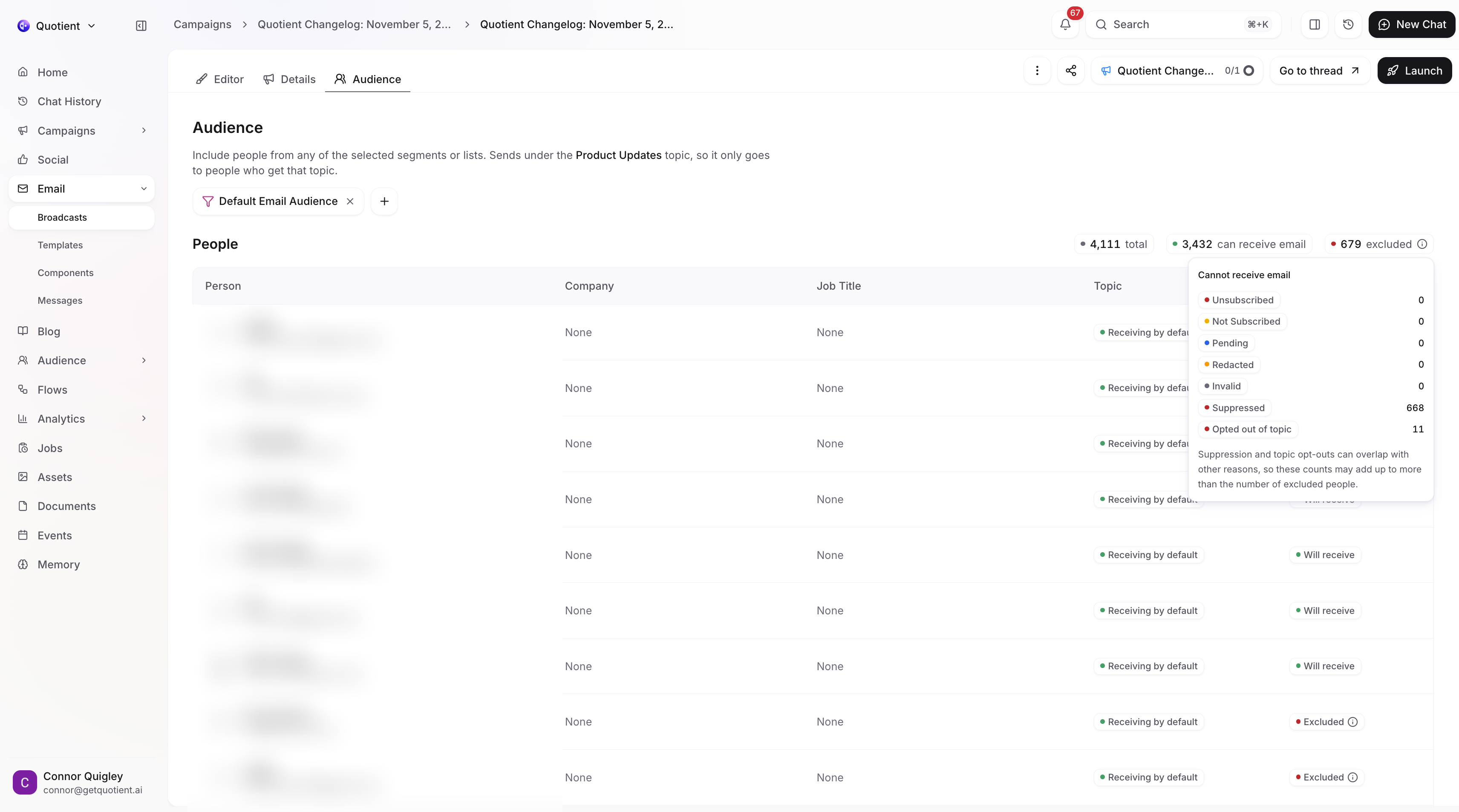
When you send a broadcast, you choose its audience from your lists and segments. Before sending, Quotient leaves out anyone who can't receive it. A person receives the broadcast only if all of these are true:
- They're Subscribed, or they're Not Subscribed and double opt-in is off.
- They're opted in to the broadcast's topic.
- Their address isn't suppressed.
When you pick an audience, Quotient shows how many people will be left out and why.
A broadcast also can't launch until it has a topic and its email contains an unsubscribe link. The link is how people reach the preferences page, so Quotient won't launch a broadcast without one. You pick the topic on the broadcast's Details tab.
The Subscription Lifecycle
Here's what happens to someone's status at each stage, from signup to unsubscribe.
Signing Up
Most people subscribe on your website, through a newsletter signup form like the one on Quotient's newsletter page, or by checking a "Send me updates" box when they create an account.
To connect a form to Quotient, call subscribeToEmail() from the
Quotient JavaScript SDK when the form is submitted. The example
below assumes you've already set up client as the SDK's
Quick Start shows:
<form id="newsletter-form">
  <input type="email" name="email" placeholder="you@example.com" required />
  <button type="submit">Subscribe</button>
</form>

<script>
  const form = document.getElementById("newsletter-form");

  form.addEventListener("submit", async (event) => {
    event.preventDefault();
    const emailAddress = new FormData(form).get("email");

    const { confirmationRequested } =
      await client.audience.people.subscribeToEmail({ emailAddress });

    form.innerHTML = confirmationRequested
      ? "<p>Check your inbox to confirm your subscription.</p>"
      : "<p>Thanks for subscribing!</p>";
  });
</script>
This does two things. First, it subscribes the person in the way your settings
call for. With double opt-in off, they become Subscribed right away. With it on,
they stay Not Subscribed and Quotient sends them a confirmation email. The
confirmationRequested value tells your form which happened, so it can ask
them to check their inbox.
Second, it identifies the person, so their later visits to your website are credited to them in Quotient's analytics. See Identifying Users to learn more.
If the form is for something specific, like webinar invites, you can also pass the topics it's for, and the person is opted in to them. If they need to confirm their address first, they're opted in when they click Confirm. The SDK reference shows how.
Confirming Their Address
If double opt-in is on, the person now has a confirmation email in their inbox. Until they act on it, their status stays Not Subscribed and they won't receive your email.
The email contains a link made just for them. It leads to a confirmation page, and when they click Confirm, their status changes to Subscribed. From then on they receive your email. (Opening the link alone doesn't confirm, because some email security tools open every link in an email to scan it.) The link works for 7 days; after that, the person can sign up again to get a new one.
Changing Topic Preferences
After a few months of your email, a person might want less of it. Let's say you have three topics (Product Updates, Marketing, and Newsletter), and someone is tired of your promotional emails but still wants the rest.
The footer of every email you send includes a link to the preferences page:
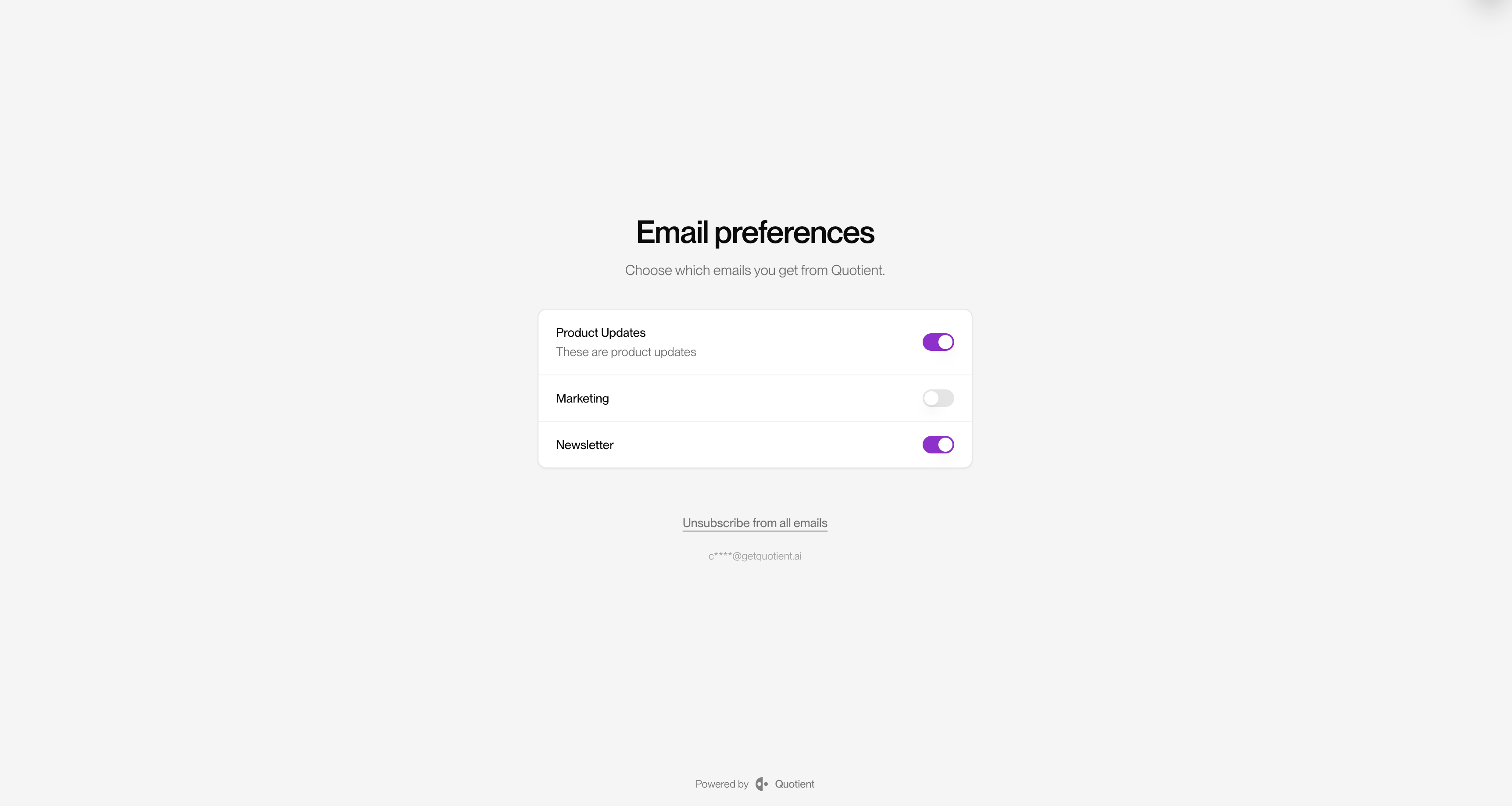
On this page, they can switch each topic on or off. Here, they'd switch off Marketing and leave the other two on. This changes only their topic choices. They stay Subscribed and keep receiving Product Updates and Newsletter.
You can change how this page looks in Email Settings under Preferences Center.
Unsubscribing From Everything
To stop all email from your business, the person clicks Unsubscribe from all emails on the preferences page. Their status changes to Unsubscribed, and they won't receive any more email from you unless they subscribe again.
Their topic choices are kept, so if they come back later, they pick up where they left off.
Frequently Asked Questions
Q: What's the difference between Not Subscribed and Unsubscribed?
A: Not Subscribed means the person hasn't said yes or no yet. Unsubscribed means they said no: they asked to stop receiving your email.
Not Subscribed is the starting status for anyone you add yourself, for example through a CSV import or a CRM integration.
Q: Does Quotient stop me from emailing people I shouldn't?
A: Yes. Before every broadcast, Quotient leaves out anyone who doesn't meet the rules in Who Receives a Broadcast. This protects you. Emailing these people hurts your sender reputation and your deliverability, and depending on where you and they are, it can bring large fines.
Q: Is double opt-in required by law?
A: It depends on where you operate and where your subscribers live. In the US, the CAN-SPAM Act doesn't require double opt-in, though it has other rules, such as a working way to opt out and your postal address in every email. The EU's GDPR doesn't require it outright either, but some EU countries, such as Germany, effectively do. Rules elsewhere vary. This isn't legal advice, so check with your lawyer.
Q: Does Quotient support one-click unsubscribe?
A: Yes. Every email Quotient sends includes the headers that Gmail, Yahoo, Apple Mail, and other inbox providers use to show an Unsubscribe button next to your sender name. Clicking it opts the person out of that email's topic only. Their other topics and their subscription status stay the same.
The exception is an email whose topic has since been archived, or one sent before your business had topics. There's no topic left to opt out of, so the button unsubscribes the person from all of your email.
Q: Can I set a person's subscription status myself?
A: Yes. When you add people yourself, such as through a CSV import, Quick Add, or by asking Quotient, you can set their status, and Quotient uses the status you give it. People you add this way never get a confirmation email, even with double opt-in on. Only mark someone Subscribed if they agreed to receive email from you, since you're responsible for having their consent.
Q: If someone unsubscribes and later subscribes again, are their old topic choices restored?
A: Yes. Unsubscribing doesn't erase their topic choices. If they subscribe again through a signup form that names topics, they're also opted in to those topics.
Q: If someone unsubscribes and later signs up again, do they get a confirmation email?
A: Yes, even if double opt-in is off. Anyone can type any email address into a signup form, so a signup on its own isn't proof that the person changed their mind. The confirmation email proves the request came from them. They stay Unsubscribed until they click Confirm.
The exception is the Subscribe again button on the preferences page. That page is reached from a link in the person's own email, so Quotient subscribes them right away, with no confirmation email.
Q: What does the Pending status mean?
A: Pending only comes from people synced from Shopify or Mailchimp. Quotient doesn't email them.