

Attio
Connect your Attio workspace to Quotient for CRM-powered marketing
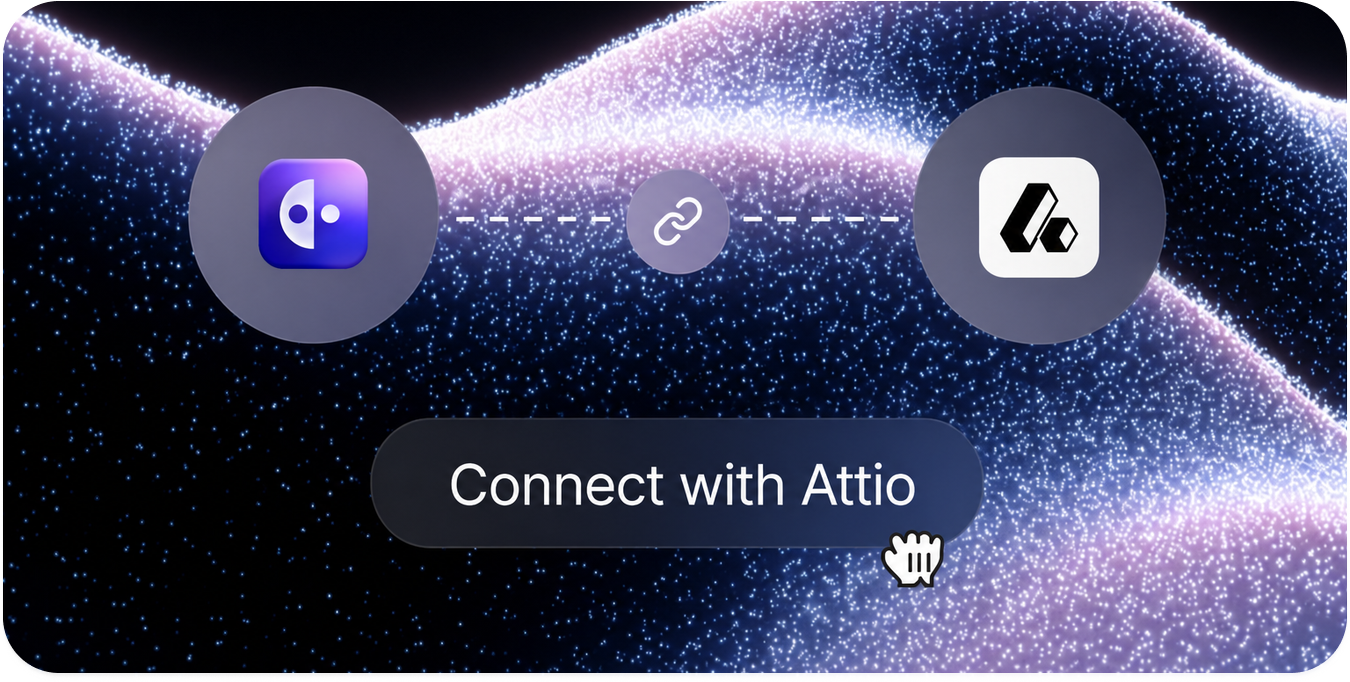
The Attio integration syncs audience data between your CRM (Attio) and Quotient. People, Companies, and Deals sync from Attio into Quotient automatically; People also sync back from Quotient to Attio as new leads come in.
This allows you to:
- Build dynamic segments in Quotient using firmographic data from Attio (like company industry, company size, and deal stage) so you can tailor your marketing to each segment.
- Automatically send new leads collected by Quotient to Attio, or use a Flow with a Conditional step to send them to Attio only once they cross a lead score threshold or meet other criteria.
- Add conditional logic to Flows based on firmographic data from Attio. For example, build automated email sequences that behave differently for companies of different sizes or in different regions.
Core Concepts
When you connect Attio to Quotient, here is how the pieces fit together:
Attio workspace connection
Quotient connects to Attio through OAuth. You authorize Quotient from Attio's login screen, and Quotient stores a secure access token for your workspace. No API keys to copy, and you can disconnect at any time from Integrations → Attio.
Synced objects
The integration syncs Attio people, companies, deals, and workspace members. In Quotient, people become audience records you can email and segment on; companies and deals power account-level targeting and reporting; workspace members are imported so record ownership can be mapped correctly.
Field mappings
Field mappings control which Attio attributes sync to which Quotient fields. Quotient sets up sensible defaults when you connect, and you can add custom mappings for the attributes that matter to your business. See Field Mappings for details.
Sync
Your Attio data stays up to date in Quotient automatically, and changes appear instantly.
Working with Attio Data in Quotient
Most teams connect Attio to solve a simple problem: marketing should not live in a silo. Here is a typical workflow:
- Connect Attio and wait for the initial import to finish. Monitor progress on the Jobs tab in integration settings.
- Review field mappings so the Attio attributes you care about (ICP tier, lifecycle stage, ARR band) appear on Quotient people and companies.
- Build segments from synced deal stage, company attributes, or custom properties.
- Use Flows with a Send to CRM step when you want Quotient to push updated person fields back to Attio after a form submission or nurture sequence.
Tips for getting the most out of the integration:
- Map your most-used Attio custom attributes early, since segments and email personalization work best when the fields you filter on actually exist in Quotient.
- Ask Quotient to build segments from Attio-backed fields once sync completes; it can see the same properties you mapped.
- Use Send to CRM in Flows when a lead fills out a form in Quotient and you want that enrichment written back to the Attio person record.
Getting Started
- Connect Attio → Authorize your workspace and run the first sync.
- Configure Field Mappings → Customize how Attio attributes map to Quotient fields.
Need help? Ask Quotient for assistance with your Attio integration, or contact our support team.